How to Fix Poor Webcam Quality When Resolution is Good
Short answer:
Adjust the exposure and frame rate by preventing the website from controlling them automatically. The Page context browser extension allows you to do exactly this.
When you use a webcam, for example during a video call, video settings may be adjusted without your involvement. Website and browser developers make many decisions for you without knowing your needs. They assume you need a stable connection, so video quality has to be sacrificed.
Which data-saving approaches can be applied automatically without your involvement?
- Reduce image resolution.
- Reduce frame rate.
What is wrong with these approaches?
Reducing resolution and frame rate removes spatial and temporal information. It is impossible to choose an approach that fits the specific camera.
Conditional improvement
Reduce the frame rate by adjusting exposure.
What does suitable exposure provide?
- It improves the signal-to-noise ratio.
- It makes it possible to shoot in darker lighting.
Why is exposure adjustment the key to high-quality video?
Suppose you have insufficient exposure and see that the camera produces a dark result. Brightness appears in many interfaces, and its name creates an association with fixing darkness, while exposure is adjusted in a separate interface and its name gives no hint for solving this problem. You increase brightness in software, making a simple but incorrect decision. This action leads to another, less noticeable artifact: noise.
Then you start noticing bright points that appear and disappear when there is not enough light. After a long time and much inconvenience, you accidentally discover that these points disappear when you reduce the camera resolution.
You reduce the resolution, realizing that this should lower video quality, considering it an acceptable trade-off, and treating noise as an unavoidable phenomenon. Reducing resolution removes only high frequencies, but the noise does not disappear completely.
Then you feel that something is wrong with the camera compared with others, but you can no longer guess what exactly, because you have already eliminated the noticeable symptoms. Probably many months have passed since you adjusted brightness, and you have not only had a bad impression of the camera but also lost the association with the moment when you decided to change brightness in software. Now it is harder for you to guess that the problem is exposure.
Timely camera exposure adjustment would have solved the problem at the first stage.
You can improve quality with exposure after reducing the frame rate. But this will not work automatically, because websites usually cannot change webcam exposure.
The problem of economical data transmission from a webcam requires user intervention to adjust exposure, but websites often try to offer you a magic button that explains nothing, while the website algorithm quietly applies a decision for you.
Websites usually reduce resolution, which is usually even worse than reducing frame rate. Imagine that instead of a letter you are given one dot. Even a high speed of receiving information through a dot will not replace the full image of the letter.
Solution
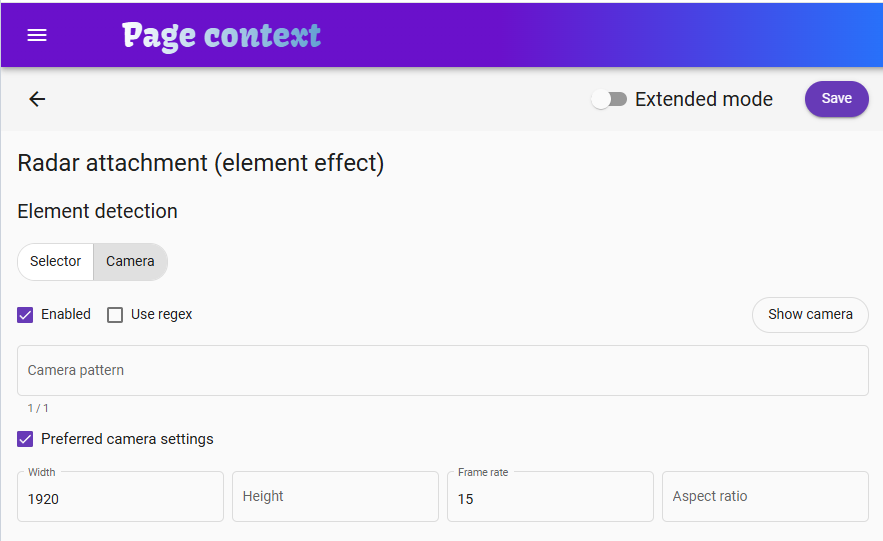
The Page context extension allows you to override how websites work with the webcam so that you can set width, height, frame rate, and aspect ratio values.
You can bind the desired settings to your camera by its name, and also bind its operation to the desired website by page address or other page characteristics.
That is, you need to set a frame rate that is comfortable for network bandwidth and, knowing it, set the camera exposure. For example, if your frame rate is 15 frames per second, then a frame will be sent every 1000 / 15 = 67 ms, and exposure can be set, for example, to about half that time (about 30 ms), so that artifacts caused by its contribution are less noticeable.
Steps
- Open a website with webcam access. Without access, the camera cannot be configured.
- Next to the address bar, find the extension icon and click it.
- In the extension popup, in the Camera & Element section, click Create.
- In the extension window that opens, in the Element detection section, select Camera.
- Specify the frame rate, width, or other camera settings and click Save (it will work on this page).
- To make it work on selected pages, click the arrow in the upper-left corner to go to the Radar page and specify the desired filter for pages so that it works on the pages you need.